From the ring to the kitchen, six steps.
Wolf Eats is an AI agent that answers your restaurant's phone and takes the order. The order is taken against your menu, confirmed by the caller in a text, and only then sent to the kitchen. Here is each step and what it never does.
Your menu goes in
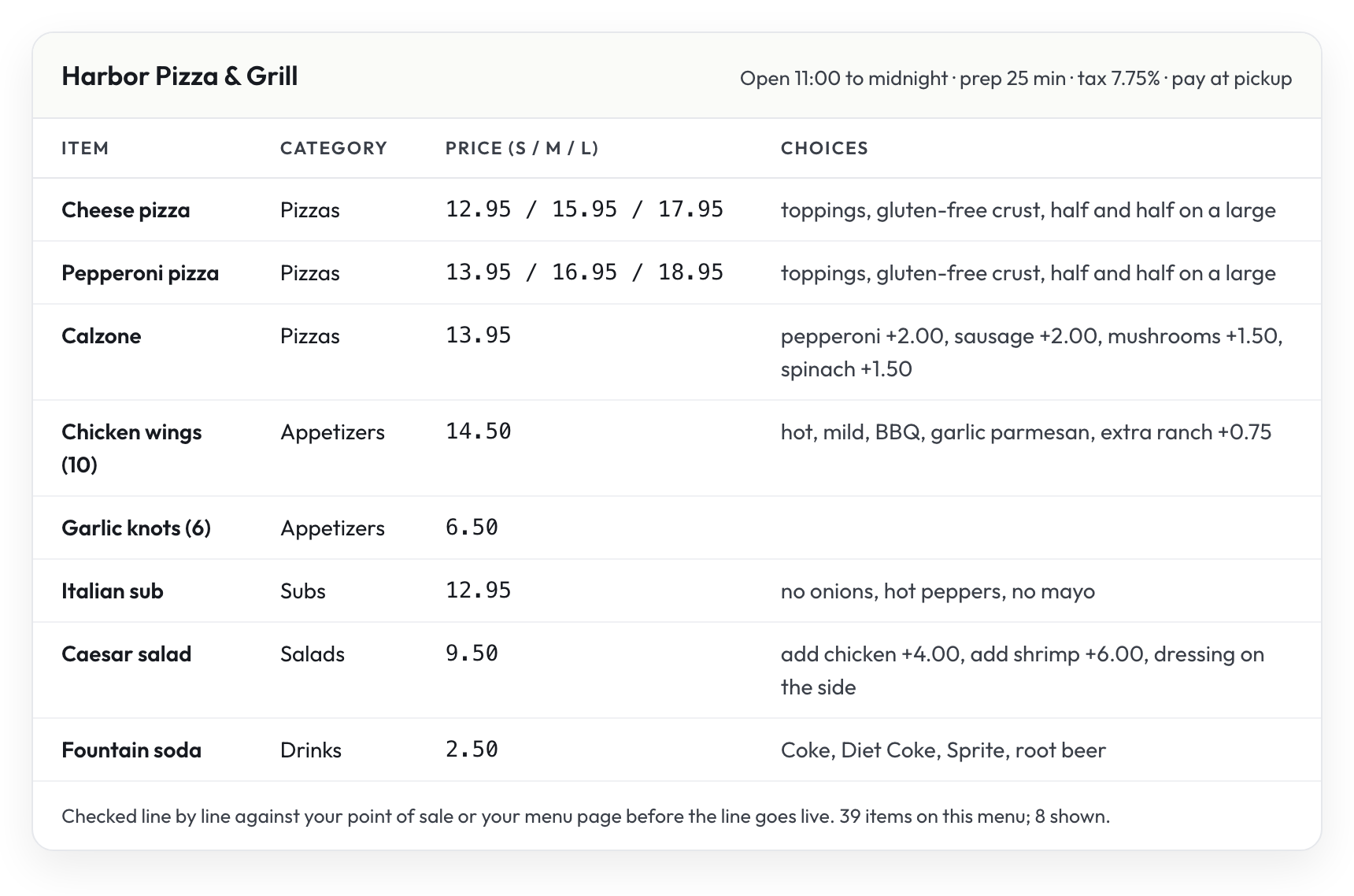
A CSV in our template, your point of sale's catalog when it is connected, or the menu page as reference. Items, sizes, choices, prices, hours, prep time. The agent sells only what is on it.
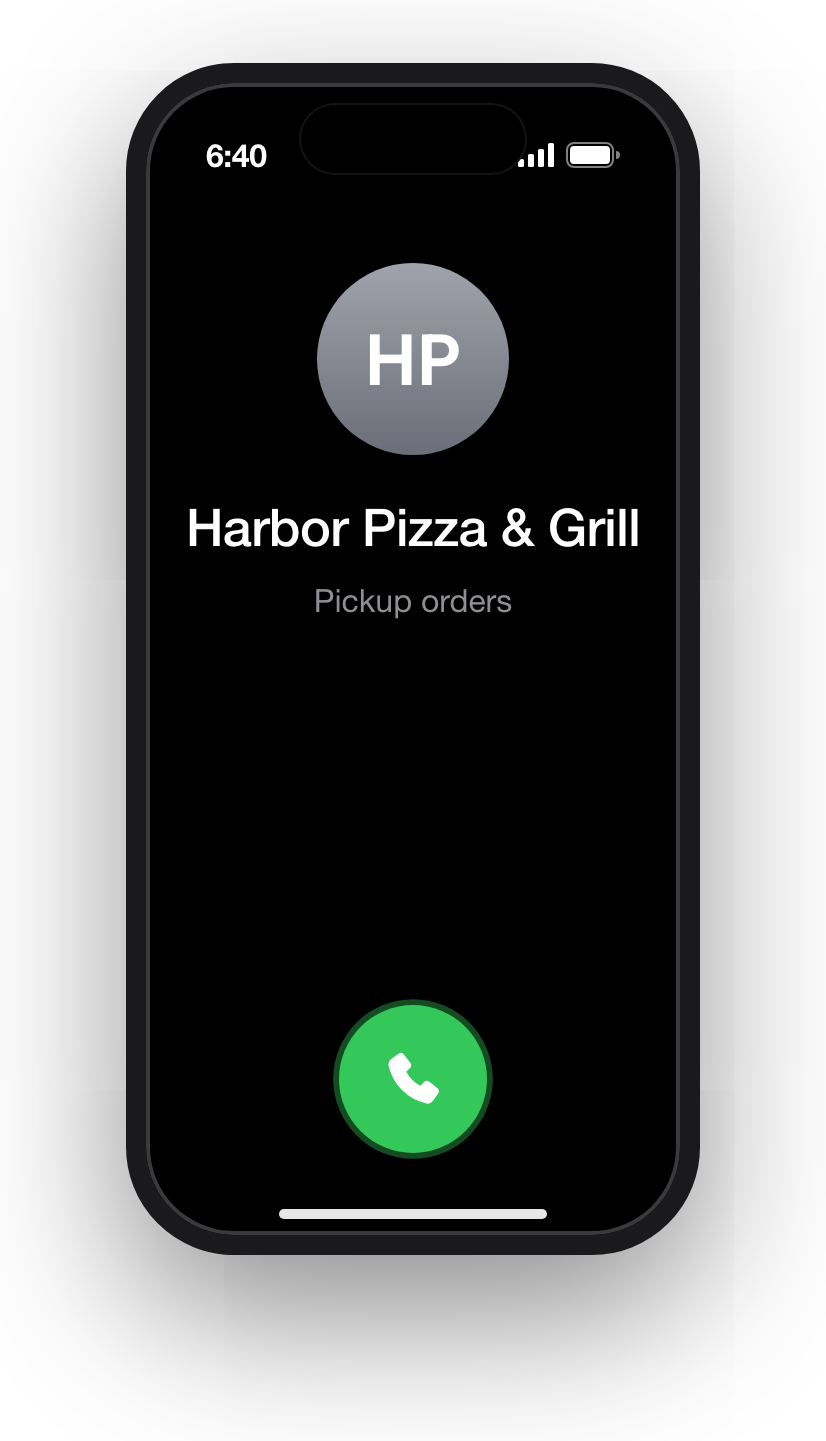
The call
The agent answers as your restaurant, takes the order one item at a time with a lookup for each, offers the choices the item has, names every plate, offers one drink, side or dessert when the order lacks it, and reads the whole order back with the total.
The text
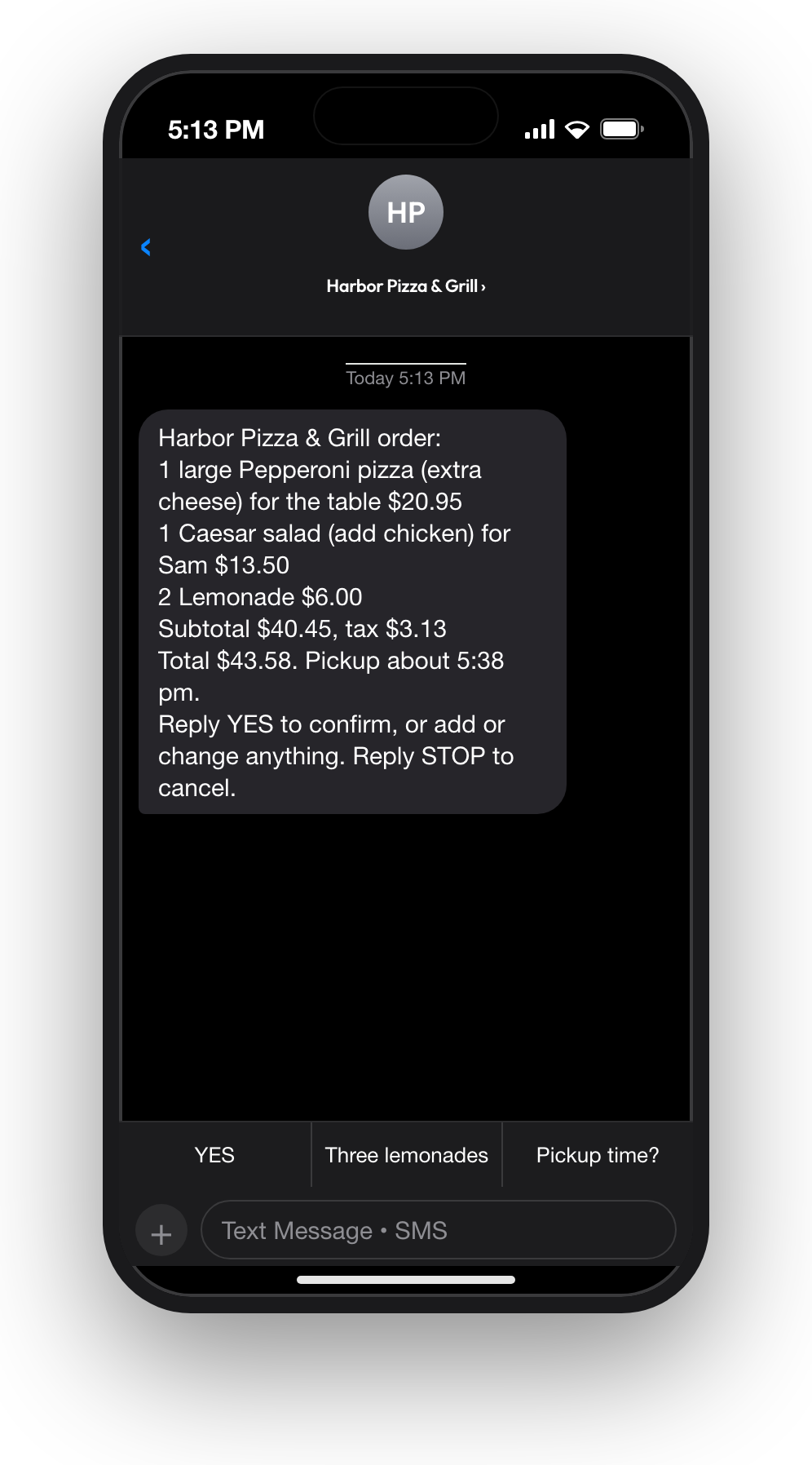
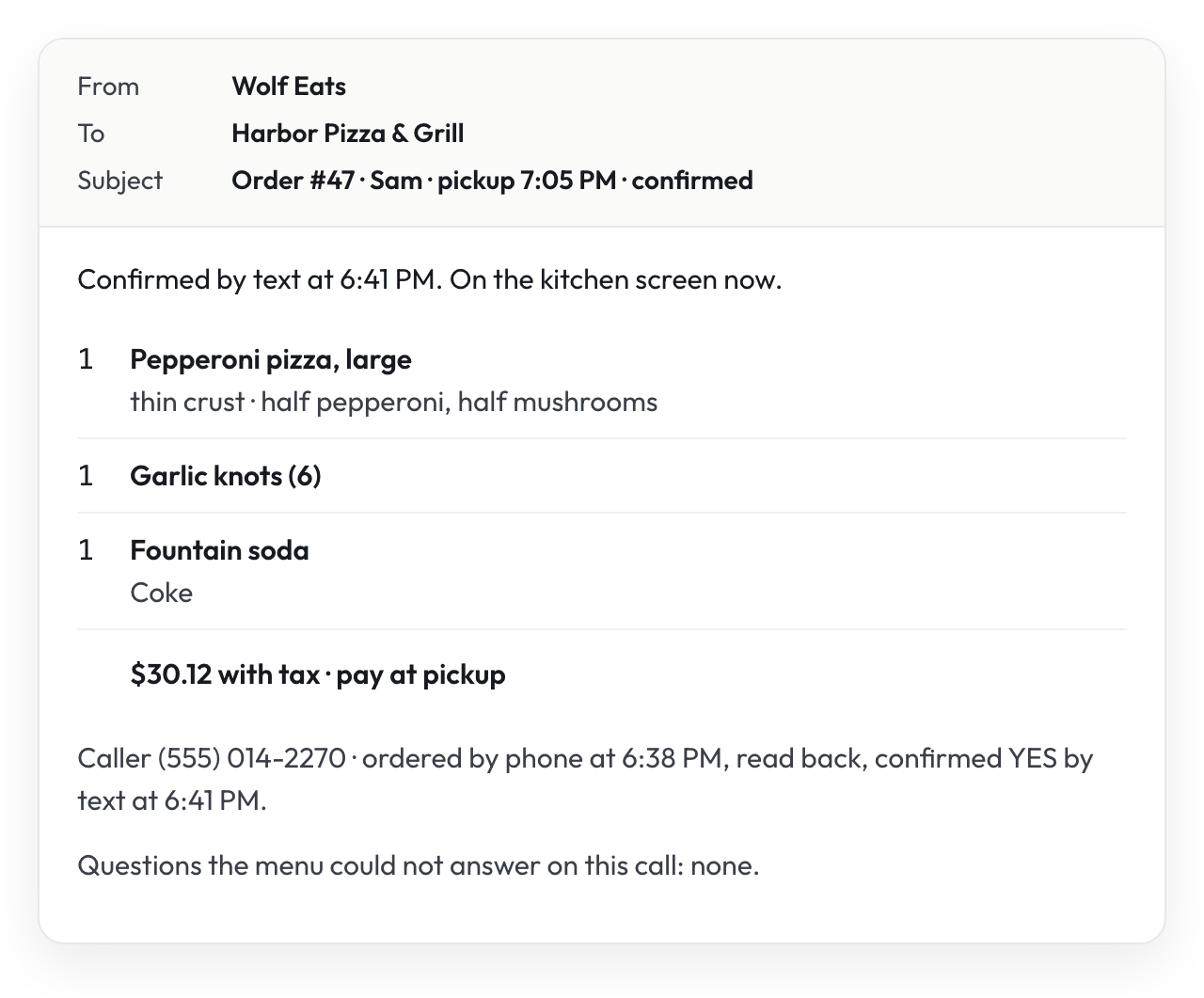
The caller gets the order with the total and the pickup time. YES confirms it. A change updates the order and comes back for another YES. A question gets an answer and the order again. Three rounds, then a person calls.
The kitchen
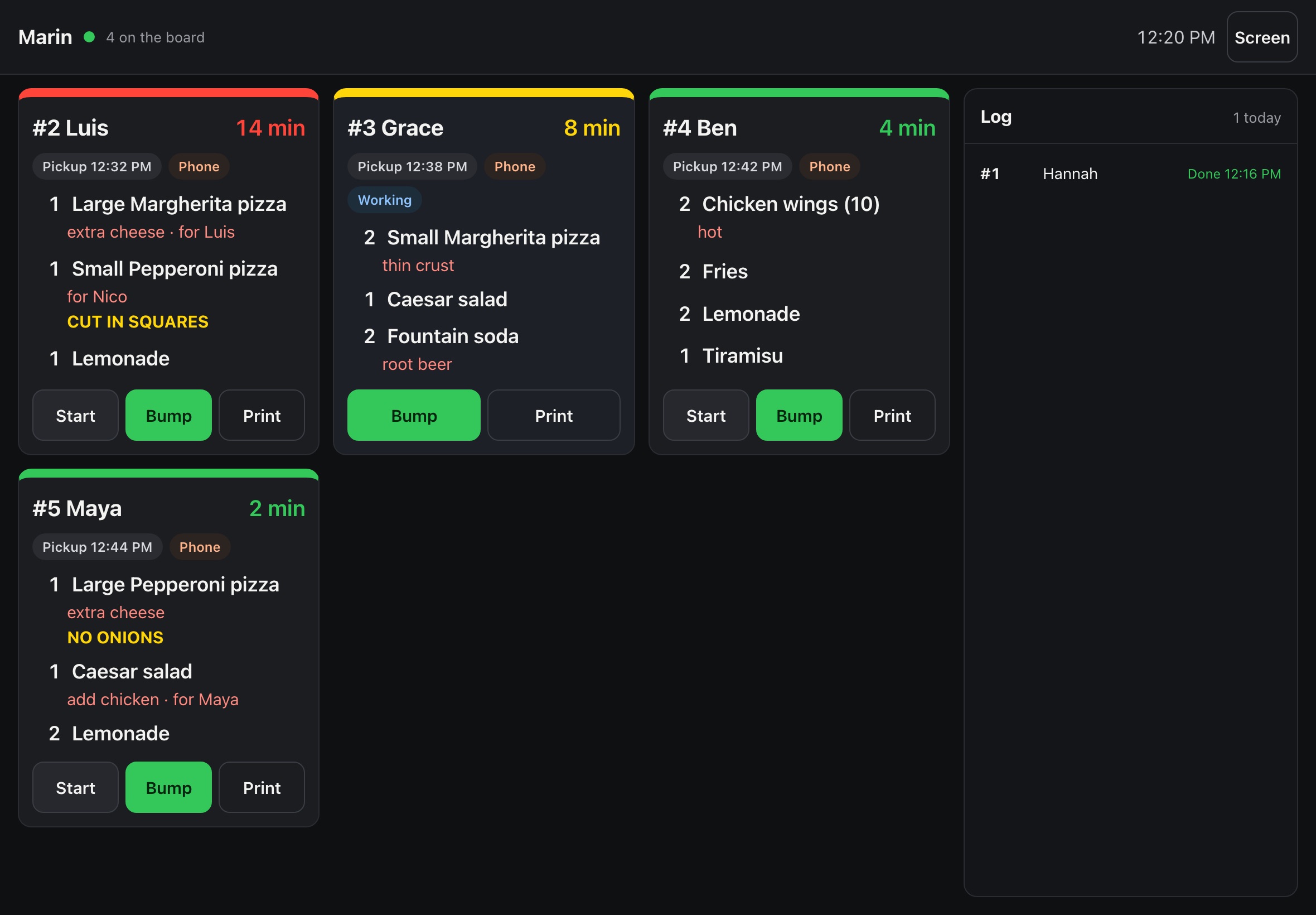
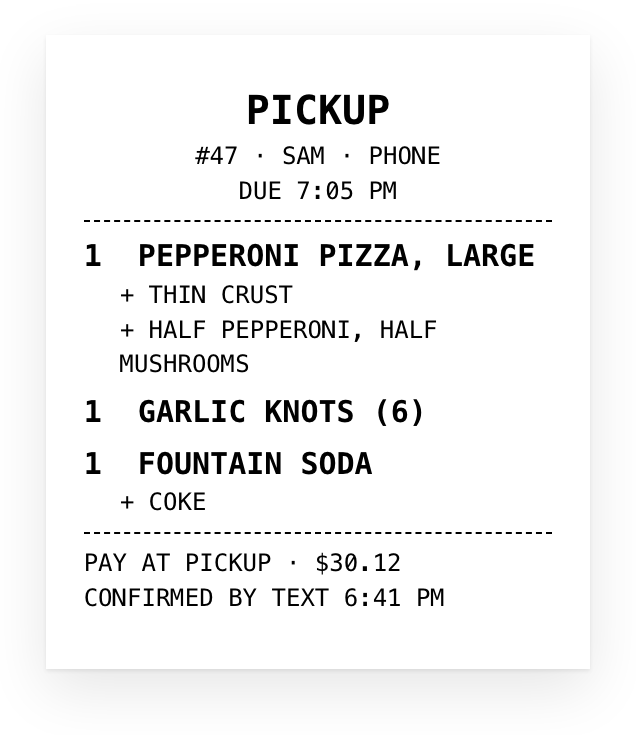
A confirmed order lands on your kitchen screen: a tile on the iPad by the pass with the number, the name, every change, a timer that turns yellow at five minutes and red at ten, and Start, Bump and Print. It can go out as a ticket too, to the kitchen phone, an email or a printer. Nothing reaches the kitchen without the YES.
The money
The caller pays at pickup; the confirmed order goes to the kitchen as a ticket. Pay by link through your point of sale, and wolf collecting the payment and depositing to you through Stripe, are coming soon. No card numbers on the phone, ever. A 5% merchant fee applies when a payment is taken by card. Rates may change by area and restaurant type.
What you see
Every order on your desk with its state, a summary email after each call, the questions callers asked that the menu could not answer, and the dialogue where you teach the agent a new rule in a sentence.
What it never does
- Take a card number on the phone.
- Say a price, an item or a time that is not on your menu or in your rules.
- Send an order to the kitchen before the caller has texted YES.
- Upsell twice, or push anything you did not list.
- Promise a delivery it has no driver for.
Put Wolf Eats on your line.
Request a preview. Tell us about the restaurant, the point of sale and how you want to get paid. When a trial opens, it requires a card on file.